Turn your app idea into a real app with sign-in, without writing any code yourself
In 40 minutes you'll fork a starter web app, connect it to Devin, describe your own app idea, and prompt Devin to build it: a landing page for your app, sign-up and sign-in with Clerk, and a members-only Coming soon page listing the features to build next.
Enter your GitHub username at the top. Every link and prompt on this page fills in with it and with your app idea, and your progress is saved in this browser.
Before you start
do this before the eventYou'll need three things ready. Setting them up takes about 10 minutes.
- A GitHub account. Any personal account works (sign up).
- Devin Pro, activated with your event coupon. Sign up at app.devin.ai, open Settings → Plans, pick Pro, and enter the coupon code you received from the organizer at checkout.
- GitHub connected to Devin. Go to Settings → Connections → GitHub, click Add Connection, and pick your personal GitHub account. When GitHub asks which repositories Devin can access, choose All repositories. That saves a step later.
You don't need a Clerk account. Devin will create a temporary development app that you can claim at the end.
Fork the template repo
4 minThe template is a small Next.js app shell with placeholder branding. The landing page is public, and there's a /dashboard "Coming soon" page that's meant to be for members only but isn't protected yet. You'll fork it so Devin can work on your own copy.
- Choose your personal account as the Owner and keep the name
devin-clerk. - Untick "Copy the main branch only". That brings the
solutionbranch along, which is handy if you fall behind. - Click Create fork.
Connect your fork to Devin
5 min- Go to the Devin home page and start a new Agent session.
- Open the repository selector: click + under the message box, then Repositories, and choose
<you>/devin-clerk.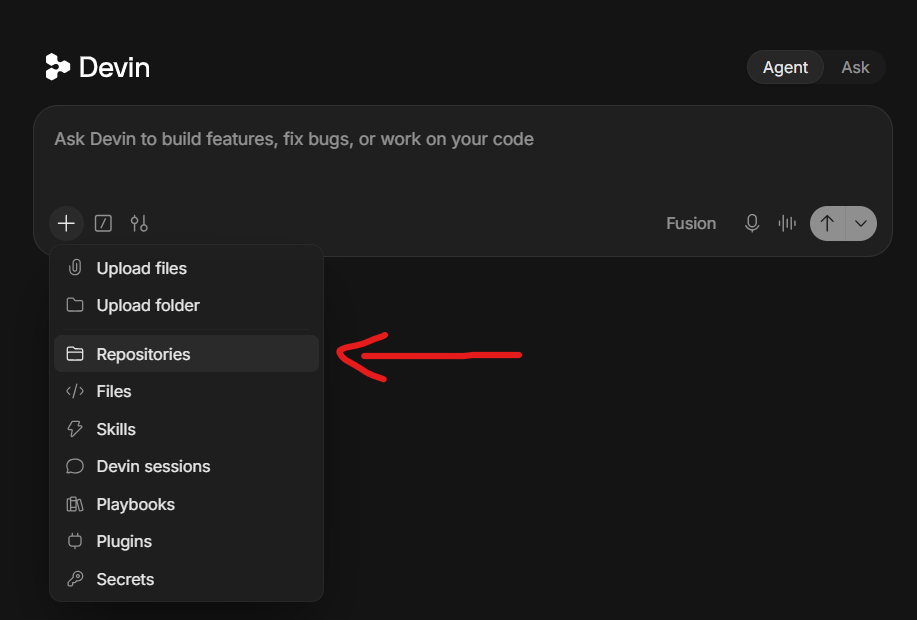
The + menu under the message box, with Repositories highlighted. My fork isn't in the list
Devin can only see repositories that its GitHub app is allowed to access. You probably chose "Only select repositories" when you connected GitHub.
- On GitHub, open Settings → Applications → Installed GitHub Apps and click Configure next to the Devin app.
- Under Repository access, choose All repositories or add
devin-clerk, then click Save. - Reload Devin and open the selector again. It can take a minute for the list to update.
If you forked into a GitHub organization instead of your personal account, the Devin app must also be installed on that organization. In Devin, open Settings → Connections → GitHub, click Add Connection and pick the organization.
- Keep the tab open. You'll paste the first prompt in the next step.
AGENTS.md in your repo before it starts. It covers the project's commands and the Clerk rules, e.g. "use the Clerk CLI in accountless mode" and "never commit keys". That's why your prompts can stay short.Describe your app and ask for a plan
7 minFirst, tell us about the app you want to build. It can be a side project, something for work, or just for fun. One sentence is plenty. Devin will use it to brand the app and to suggest the features for your Coming soon page.
Then ask Devin for a plan, not code. You'll review it and steer it before anything gets built.
Repository: {{repo}}

My app idea is "{{app}}": {{desc}}

Turn this starter into the first version of my app, with sign-in by Clerk. This message is for planning only: reply with a plan and then stop. Don't edit files, install packages or run the Clerk CLI until I reply with "approved".

Requirements:
- Brand it: put my app's name and description in app.config.ts and pick an emoji and accent color that fit.
- Set up Clerk with the Clerk CLI in accountless mode, following the rules in AGENTS.md. I don't have Clerk keys.
- Signed-out visitors see "Sign in" and "Sign up" buttons in the header. Signed-in users see their avatar menu instead.
- The landing page (/) stays public and pitches my app.
- /dashboard requires sign-in and is a "Coming soon" page: greet the user by first name (or the start of their email if they have no name) and list 4–6 features to build next, based on my description.
- /api/roadmap returns a 401 JSON error when signed out.

In the plan, list the features you'd put on the Coming soon page, the files you'll change, how you'll protect routes, and how you'll check that it works. Keep it short, and end by asking me to approve it.
Review the plan
When Devin replies, check that the plan:
- lists 4–6 Coming soon features that make sense for your app,
- runs
npx -y clerk@latest initinstead of asking you for keys, - protects
/dashboard(inproxy.tsor on the page) and/api/roadmap, and leaves/public, - says how it will verify the result (lint, build, trying it in a browser).
Then reply with one change of your own. For example:
Not approved yet. Update the plan with two changes: swap feature 3 for "<a feature you want>", and style the Clerk sign-in and sign-up components with the accent color from app.config.ts.

Reply with the full updated plan only. Don't edit files, install anything or run commands yet. I'll reply "approved" when it's ready to build.
Devin started building anyway
Send "Stop. Don't make any more changes. Show me the plan you're following, including my changes, and wait for my approval." Anything it already changed stays on its branch, and Prompt 2 will pick up from there.
Build it and try it out
11 minWhat is Fusion? Devin runs two models together. A frontier "lead" model plans, handles the hard parts and reviews the work. A cheaper "sidekick" model does the routine steps: reading files, editing and running checks. You still talk to one Devin.
Why use it here? Implementing an approved plan is mostly routine work, and that's where Fusion saves the most while keeping frontier-level quality. Your usage lasts longer.
Now 30–40% cheaper: on Sept 28, 2026, Cognition announced that Devin is 30–40% cheaper in Fusion and Normal modes. Fusion also now leads the FrontierCode 1.1 Extended benchmark (score 68.8, about $0.60 per task).
If you don't see Fusion, keep the default mode. The prompts work either way.
The plan is approved, go ahead and implement it. When you're done:
1. Run lint, typecheck and build, and fix any errors.
2. Start the dev server, run `npm run share` and send me the public https://…trycloudflare.com link it prints. Don't use the built-in browser preview: Clerk sign-in doesn't work there.
3. Check the signed-out behavior at that link yourself. I'll do the sign-up test in my own browser, so don't try to sign up.
4. Open a pull request with a short description.
Don't commit .env.local or the .clerk folder.
This usually takes 5–10 minutes. While you wait, follow along in the session timeline and watch Devin run the Clerk CLI, edit files and run checks.
Try it in your browser
- Open the
https://…trycloudflare.comlink Devin sends in a normal browser tab. It's public while your session runs, so keep it to yourself. You should see your app's name, emoji and description, with Sign in and Sign up in the header. - Click Sign up and use a test email with
+clerk_testin it, likeyourname+clerk_test@example.com. When Clerk asks for a verification code, enter424242. No real email gets sent. - You should land on the Coming soon page (
/dashboard): it greets you, lists the features Devin proposed, and your avatar is in the header. - Sign out from the avatar menu and open
/dashboardagain. You should be sent to the sign-in page. - Open the pull request Devin created on your fork and skim the diff. Look for
proxy.ts, theClerkProviderinapp/layout.tsx, and the new sign-in and sign-up pages.
Something looks wrong in the app
Tell Devin exactly what you saw, the way you would with a teammate. For example: "After signing up I land on / instead of /dashboard. Fix it; I'll reload the same link." The dev server reloads on its own, so the link stays the same.
Make it yours
7 minThe app Devin set up lives in a temporary Clerk account. Claim it into your own free Clerk account so it keeps working after today and you can change its settings, starting with the password rule: temporary apps can ask for a long password.
Help me claim my Clerk app: run `npx -y clerk@latest open --print` and send me the claim link it prints. Only send it to me here: don't put it in any file, commit or PR.
- Open the claim link and sign in to Clerk, or create a free account. Claim the app when Clerk asks.
- Clerk then shows Set your environment variables with two keys and says it's waiting for you to paste them. You don't need to: Devin already put these same keys in
.env.localduring setup. Click Otherwise skip. Your running app keeps working at the same link. Don't paste the keys into Devin's chat or anywhere else: the secret key works like a password. - In the Clerk Dashboard, go to User & authentication → Password → Update password requirements and set the minimum length to 8, the lowest Clerk allows.
- Still under User & authentication, turn on collecting first and last name at sign-up, so your Coming soon page can greet new users by name.
- Open Users in the dashboard: the account you signed up with in step 4 is there.
- Sign out at your link and sign up again with a new
+clerk_testemail. The form now asks for a name and accepts an 8-character password.
Keep building after the event
2 minYour Coming soon page is your roadmap: every feature on it is a ready-made next prompt. Your Devin Pro plan keeps working after today, so pick one tonight:
Repository: {{repo}}

Let's build the next feature of {{app}}. Pick the first entry in upcomingFeatures in app.config.ts and write a short plan for it. Don't change any code until I approve it. Once it's built: remove it from the Coming soon list, link to it from the header, share a public link with npm run share and open a PR.
- More sign-in options. In your Clerk Dashboard, turn on GitHub or other social sign-in, or passwordless email codes.
- Merge your PR on your fork once you're happy with it.
- Deploy it. Ask Devin: "Walk me through deploying this app to Vercel with my Clerk keys set as environment variables."
- Speed up future sessions. Ask Devin: "Set up your environment for this repository." and approve the suggestion. New sessions then start with dependencies already installed.
- Learn more: Clerk docs · Devin docs.
More ideas to try
Send any of these in your workshop session, or in a new session with your fork selected.
A · Polish the landing page
Make the landing page sell my app better: a short headline, three benefit bullets based on the description in app.config.ts, and a "Get early access" button that opens sign-up for signed-out visitors and goes to /dashboard for signed-in users. Push to the same PR and share a public link with npm run share.
B · Branded sign-in pages
Redesign the /sign-in and /sign-up pages with a two-column layout: my app's name, emoji and description from app.config.ts on the left, the Clerk component on the right. Stack them on mobile. Push to the same PR and share a public link with npm run share.
C · Feature voting
On the Coming soon page, let signed-in users upvote the features they want most. Store votes by Clerk user ID (in memory is fine), allow one vote per user per feature, and sort features by votes. Push to the same PR and share a public link with npm run share.
D · Profile page
Add a /profile page that only signed-in users can open, using Clerk's UserProfile component, and link to it from the header. Push to the same PR and share a public link with npm run share.
E · Teams (advanced)
Enable Clerk Organizations with the Clerk CLI and add an OrganizationSwitcher to the header. Show the active organization's name on the Coming soon page, or "Personal" when none is selected. Push to the same PR and share a public link with npm run share.
Troubleshooting
Devin asks me for Clerk API keys
Reply: "I don't have keys. Use accountless mode as described in AGENTS.md: run npx -y clerk@latest init."
Devin shared a preview, or sign-in doesn't work in it
Clerk sign-in doesn't work in Devin's built-in browser preview. Ask: "Run npm run share with the dev server on port 3000 and send me the public trycloudflare.com link."
My trycloudflare.com link stopped working
The link only works while Devin's machine is awake and the tunnel is running. Ask: "The link is down. Restart the dev server and npm run share, and send me the new link." The old link won't come back.
The verification email never arrives
Sign up with an email that contains +clerk_test (e.g. yourname+clerk_test@example.com) and use code 424242. Clerk development apps accept these without sending mail.
The sign-up form shows "Verify you are human"
That's Clerk's bot protection. Tick the checkbox and continue. Inside Devin's automated browser it can block Devin from finishing the sign-up itself, which is why you do the sign-up test yourself at your link.
The dashboard says "Welcome back" without my name
New Clerk apps only ask for email and password at sign-up, so there's no first name yet. Click your avatar → Manage account and add your name, then reload the dashboard.
I'm running behind
Compare my branch with the `solution` branch of this repository and finish whatever is still missing from Prompt 2, keeping my app's name, description and features. Then share a public link with npm run share.
The solution branch is an example app ("Plant Pal"); Devin will keep your own name and features. If you ticked "Copy the main branch only" when forking, you can browse the solution on the template repo instead.
I don't like the features Devin picked
Tell it what you want instead: "Replace the Coming soon features with: X, Y and Z." They live in upcomingFeatures in app.config.ts, so it's a quick change.
Devin changed something I didn't ask for
Say so directly: "Please revert the change to X. Keep the diff limited to the auth work." Short, specific feedback works best.
Agenda for facilitators
| Time | Block |
|---|---|
| 0–4 | Intro and demo of the finished app |
| 4–8 | 1. Fork |
| 8–13 | 2. Connect Devin and start a session |
| 13–20 | 3. Plan and review |
| 20–31 | 4. Build, open the link, sign up |
| 31–38 | 5. Make it yours: claim the Clerk app |
| 38–40 | 6. Wrap-up |